Audio/Video
Team Song Settings
The options in this area will allow you to customize the experience with the "Team Songs".
Play Team Song while picking / while in PreDraft
This sets whether you want to turn on "Team Songs" for your draft. Set this switch to on, and the music will start once you begin your draft. If you set it to OFF, music will not play during either the Draft or PreDraft.
Cycle team songs each round
If you set more than one song track for each team, this will automatically switch the soundtrack for all teams at the start of each round.
How should songs play during a pick?
You have 3 options to choose from:
- Continue songs where they left off.
- Start songs over for each pick.
- Stop songs (fade out) after 15 seconds.
In a Regular style draft, the "Team Walk-Up Song" will play once a team is on deck to draft.
In an Auction style draft, the "Team Walk-Up Song" plays for the team currently nominating a player for bid.
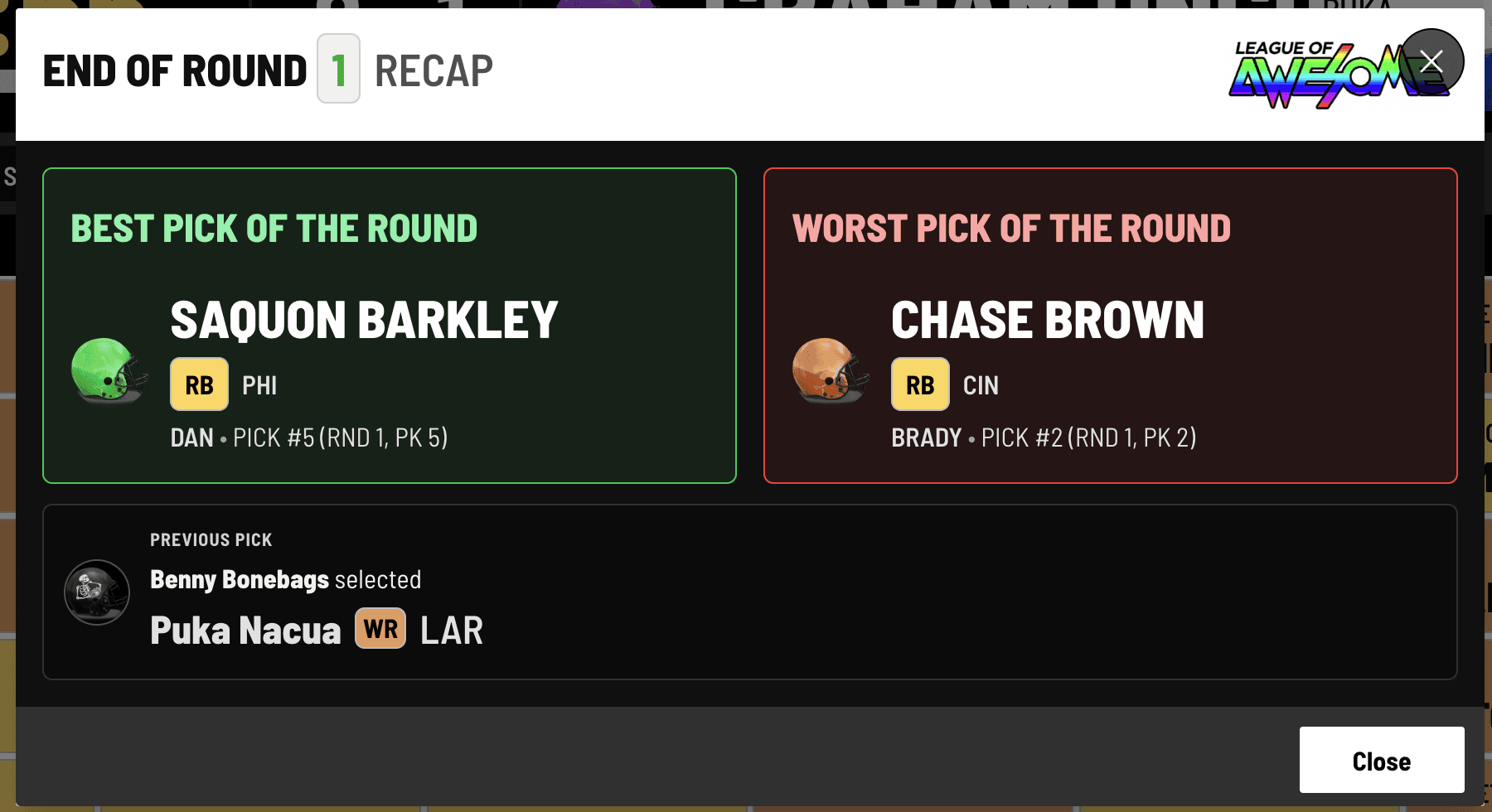
Display "End of Round Slide"
Show a slide at the end of each round, which highlights the Best & Worst picks of each round.
The slide will automatically disappear after a customizable number of seconds.
If "Pause clock when displaying End of Round Slide" is turned on, the clock will stop until the commissioner closes the slide.
A few additional notes worth knowing:
-
The "Pick Modal" display (the slide that shows the last player taken) will never display on the last pick of each round, as it is replaced by the "End of Round Break" slide.
-
If a Whammy or Player Video is assigned to the last pick of a round, the "End of Round Slide" will not automatically display.
-
If an "In Lieu of" keeper is designated for the first pick of a round, the "End of Round Slide" will not automatically display.
-
If you have remote owners participating in your draft, you should carefully decide these settings, as it can affect their experience. For example, if you turn on "Pause clock when displaying End of Round slide", those owners cannot proceed until the Commissioner clicks the resume draft button. If that option is not selected, remote owners can close the slide at any time and proceed — meaning that while you are viewing the slide, they can continue to nominate or draft players if they are on the clock.
-
At the first pick of each round, users can re-open the "End of Round Slide" utilizing this tool icon:

Note that this will re-open the slide locally for a user, and will not pause the clock if that setting was activated.
-
The "End of Round Break" slide is not available to FanDraft Hockey or Basketball users who utilize Auction style drafts.
Voice Reactions
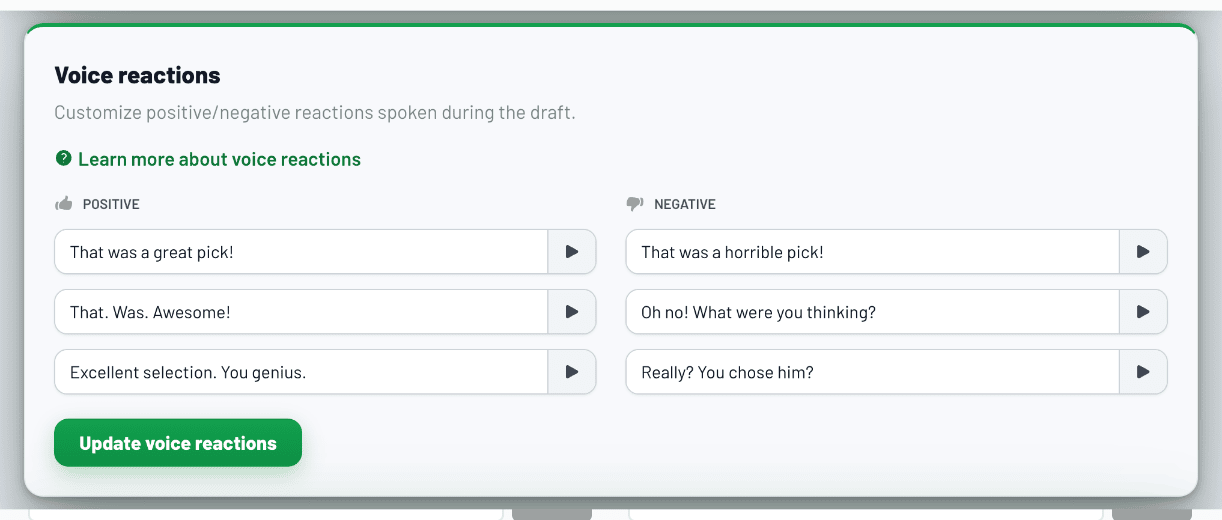
Voice Reactions are a feature used inside the Draft Room that allows the Commissioner to have the "Voice Announcer" make randomized reactions during a draft.

At any point in the draft, the Admin can click on the Audio drop-down and then click the "Positive" or "Negative" button. This action will have the "Voice Announcer" randomly speak a positive or negative response.
These sayings can be customized from the " Voice " header of your league's settings, as per below:
Announcer Voice
FanDraft's "Voice Announcer" feature is based on Text-To-Speech (TTS) technology, driven by software that is part of your computer's operating system. Not all TTS voices are the same on each browser and computer.
To change the Announcer Voice, use the drop-down menu.
Recommendation: For the best quality, we recommend the "Google US English" voice option, which is found towards the bottom of the drop-down list.
Custom Sound FX
In the draft, the commissioner can play sound effects at any time through the audio drop-down.
This settings area allows you to customize the "Sound 1" & "Sound 2" sound effects.
If you want to load a custom sound you must utilize a link from a Dropbox share file.
It's important to understand how to "share" a file in Dropbox, as the audio will not work if you do not provide a proper link structure or properly "share" the file.
See this link for assistance in properly creating a "share" file.
Once you have created share files in Dropbox, paste the link into either the "Sound 1" or "Sound 2" area, and then click the "Update SFX" button to save your changes.
If you change your mind at any time and decide you want to use the default SFX instead, simply clear the link input box so it's empty, and then save.
The Pick Is In
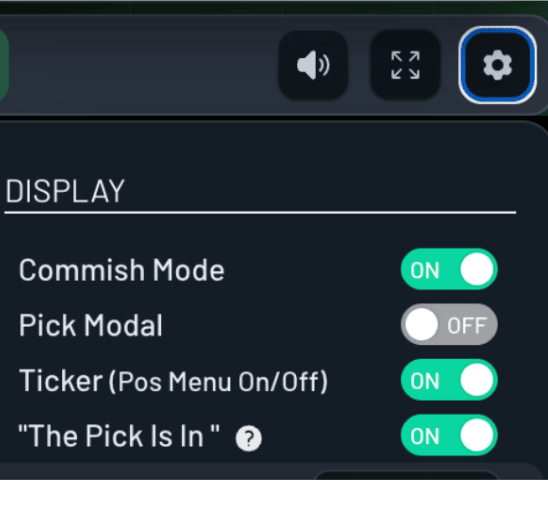
To turn on the "The Pick Is In" feature, set the notch to "ON" from the draft option menu or in this AUDIO settings area.
This feature performs the following:
1. After a player is added to the queue, a box will pop up saying "The Pick Is In" to all users (including remote users).
2. An audio sound effect will play in tandem, alerting all users that the pick is in the queue for selection.
You can further customize this feature in the setup "AUDIO" section, where if you use Team Songs, you can have the song stop once "The Pick Is In" is triggered.
You can turn this on by toggling on the "Stop song when player added for selection" option.
Remote owners have the option to individually turn this feature on/off inside the draft. The option defaults to OFF for all users.

Draft start audio
This is the starting sound effect that plays once the draft begins.
There are 3 different sounds to choose from, which only play one time (when you first enter the draft room).
Player Videos
The player videos area allows you to add videos to specific players. The videos will play once that specific player has been selected during the draft.
To add a player video:
-
Begin typing in the player search bar, and select the player you want to add a video for.
-
Paste the URL of the video into the "URL input box".
- To obtain the URL, simply go to a specific Vimeo or YouTube video, and then copy the URL from your browser bar.
- Make sure you are not in the YouTube/Vimeo Studio area, but rather the actual public site where the videos can be viewed.
-
Click the "Add video" button.
To delete a player video:
Click the (...) on the right-hand side of a video that you have already set up, and then click the "Delete" button.
Important notes and recommendations:
-
For an ideal league experience, we recommend not using videos longer than 15-20 seconds.
-
The draft clock will continue to run during your draft while the video plays.
-
Videos can be a maximum of 60 seconds in duration. Any video exceeding that length will be shortened.
-
You can use Vimeo or YouTube videos. Make sure to use the full URL, and copy the URL from the public area of YouTube or Vimeo (not within a Studio manager section).
For example, URL links will look like this:
YouTube: https://www.youtube.com/watch?v=xSROzdCQewY
Vimeo: https://vimeo.com/567229773
-
An error occurred. Please try again later. (Playback ID:XXX)
You should test the video within the page where you add player videos.
If you receive an error like the one above (via YouTube), the video link is invalid for that specific video. You can instead try using the "Share" link which YouTube provides.
-
Player videos are not compatible (will not play) on mobile operating systems, e.g., phones or tablets.
Useful Resources
Check out YouTube users @BU1B22 and @FantasyDraftVideos for an amazing collection of NFL Highlight videos: