Settings (Auction Draft)
The "Settings" area is where you will set up the basic rules and information related to your league's draft. If you change your draft type to Regular, different settings will be available and you should view the " Settings (Regular Draft) " section.
League logo
(Optional) If your league has a logo image, you can upload it here. Images must be less than 2 MB in size and have an equal pixel ratio. The recommended graphic size is 300x300 pixels.
League Name
Enter the name of your fantasy league here.
Number of Teams
Select the number of fantasy teams that are in your league.
Draft Type
FanDraft supports the traditional "Regular" style draft, "Auction" style drafts, and also "Combo / Half-and-Half" (part auction / part regular).
Combination Drafts: If your league performs a Combination Draft (e.g., Half Regular/Half Auction), follow the instructions here.
Starting Budget
This is the total amount of fictional auction dollars each team will begin with at your draft.
Minimum Bid
This amount can be zero ($0) or greater. This reflects the minimum amount a bid must be, which also means this will be the opening bid for a nominating team.
Bid Increment
By default, most leagues will want to leave this value at 1.
However, if your league utilizes decimal bidding (e.g., .25 or .50), this is where you can set this value.
Rounds
This is the total number of rounds that will take place in your draft.
It's important to note that the draft will immediately conclude at the number of rounds you set here.
Roster Size
This is the total number of players on each team's roster.
The Roster Size field is vitally important to set up correctly, as it is used to prevent teams from drafting an illegal roster and to provide an accurate maximum bid amount in Auction style drafts. The draft will immediately end once all teams have filled up their rosters.
Player Pool
The majority of leagues will want to leave this as the default "All Players".
However, the other options include:
- Rookie Only: Useful for Dynasty leagues that are only selecting NFL Rookies.
- Veterans Only: Useful for Dynasty startup leagues that want to exclude NFL Rookies.
- Playoffs Only: For leagues performing a late-season "Playoff" draft. This will include only players from teams that are in the NFL playoffs.
Auction Start Time
In Auction style drafts, this is the time the clock starts at once bidding begins.
How an auction clock works: The clock starts once bidding begins and continues running down as bids are placed by owners. Once the clock hits 10 seconds (the "Wrap-up Time"), each new bid resets it to 10 seconds. When no further bids are made and the clock hits zero, the player can be processed as a pick.
Wrap-up Time
By default, this is 10 seconds. During the auction bidding process, once the clock hits 10 seconds, every bid resets it to 10 seconds. This time can be customized here to any amount between 3 and 20 seconds.
Draft Date
The draft date area is completely optional, in that you can hold and start your draft on any day (and at any time) that you want regardless of what you put in this field. You can even leave this field empty if you would like. If you enter your draft date information, FanDraft will send out a reminder email to any users that you invited to draft remotely. The email will contain the information (time) that you set here, as well as provide reminder information to these users on how to log in to the draft.
Owner Editing
Only the admin user (the person who purchased a PRO account) has access to edit all league, team, and draft setup. This includes assigned co-commissioners, who also don't have access to edit setup information.
If you turn "Owner Editing" on, owners who have a registered account and have been invited to participate remotely will be able to edit their Team Name, Team Logo, and Owner images.
All other team information is still required to be added by the Admin commissioner.
Roster positions
This section allows you to input your league roster rules, which denote the positions that your league uses along with the minimum and maximum allowed at each position.
Use: If your league uses this position, make sure the switch is turned to the green "on" position.
Minimum: This is the minimum number of players at this position required for each team.
Maximum: This is the maximum number of players at this position allowed for each team.
Color: Here you can customize the cell color on the draft board for the position.
Setting this information correctly will allow FanDraft to warn/prevent owners from drafting an illegal roster.
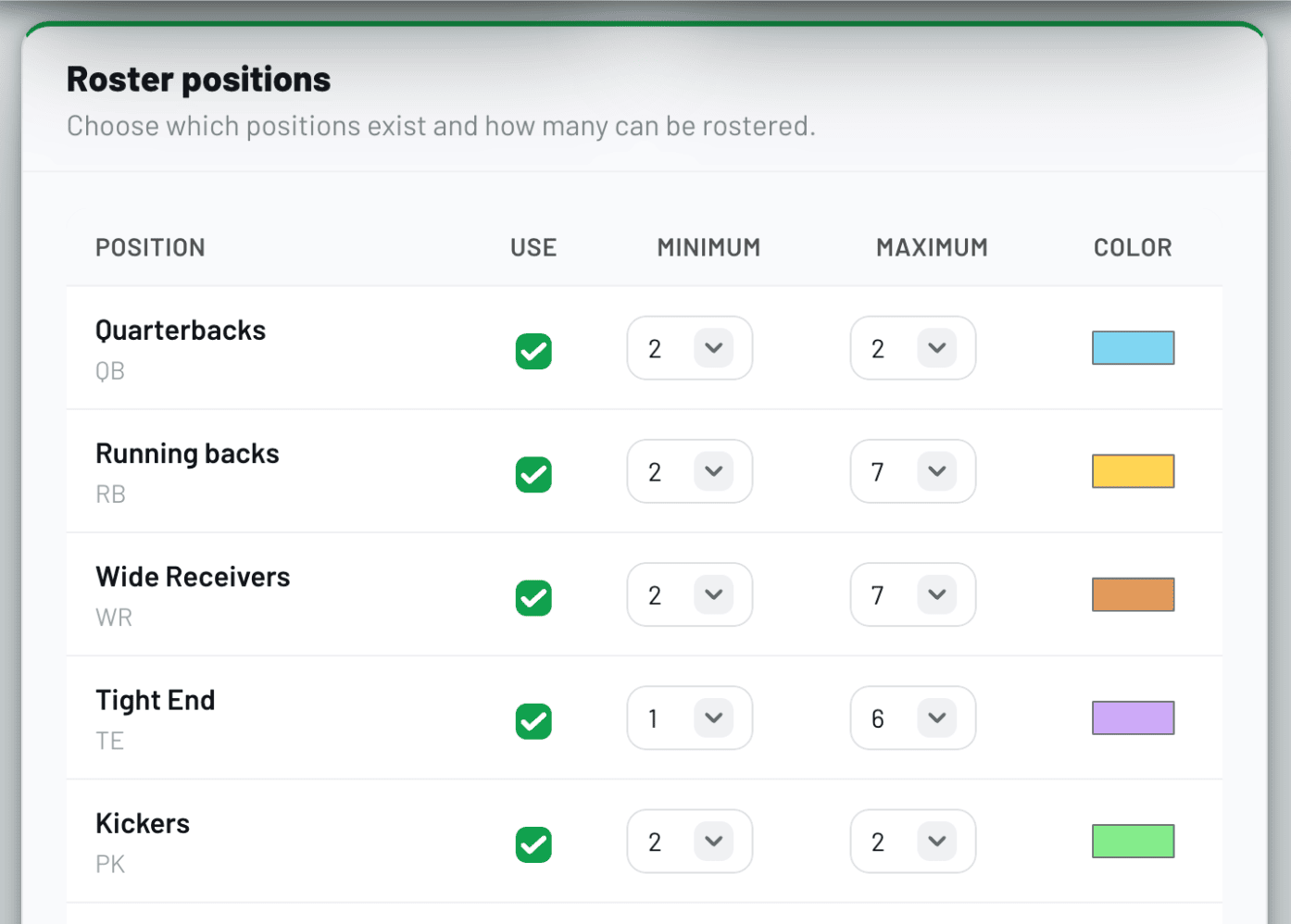
By default, FanDraft shows the 6 standard positions used in most leagues; however, you can simply click the "Toggle More Positions" button to reveal the many additional positions you can add.
Toggle "Use" for each position you wish to include/exclude, then set the Minimum and Maximum number of players a team is allowed to select at each position.
Hide rankings
Most leagues will want to leave this as the default (unchecked).
However, if your league prefers to not allow owners to sort players on the draft board by Rank, then you can check this box.
Hide Clock
Most leagues will want to leave this as the default (unchecked).
However, if your league prefers to not use a draft clock, then you can select this option.
This will turn off and hide the draft clock during the draft.
Nomination Clock
The Nomination Clock option can be found at the bottom of the SETTINGS area, and can be set for 35, 45, or 55 seconds.
Once the time has expired for a nominating team, the platform will automatically skip to the next team, and it will not return to them until the next round.
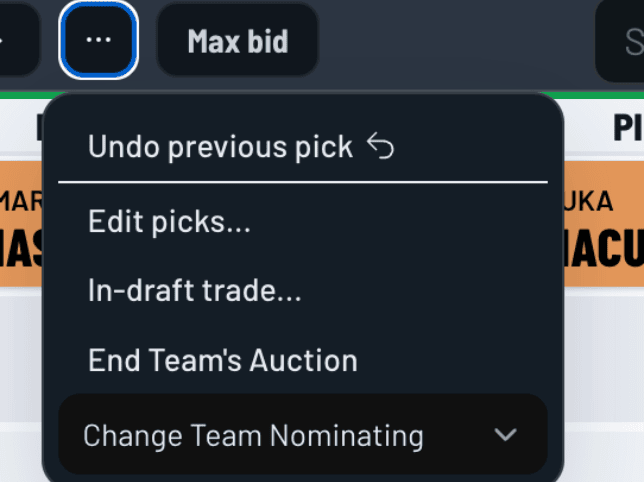
It's useful to know that the commissioner can pause the nomination clock at any time during the draft, and can revert any nomination skips via the in-draft "Change Team Nominating" tool (accessible via the (...) commish tools drop-down button):
Use Whammies
Some leagues like to randomly designate a set number of players as "Whammy Players". These leagues will then penalize the owner who had the misfortune of selecting one of these players by having them do something such as "take a shot".
To utilize this feature, simply turn on the "Use Whammies" option, select how many players you would like to be randomly assigned a "Whammy" designation, and then click SAVE LEAGUE CHANGES.
When one of these players is selected during the draft, a video will automatically pop up announcing that this was a Whammy.
If you would like to test how this works via a practice draft, we added a special "Reveal Whammy Players" ability for the commissioner.
- Click "Enter Draft Room".
- Exit back to league SETTINGS, and scroll to the bottom.
- Click "Reveal Secret Whammy Players".
How the Whammy Players Are Selected:
Keepers or players that have a Player Video assigned to them will automatically be removed from eligible Whammy players. The system will randomly select eligible players from the top 150 at the positions used by the league.
Note: Whenever you change the number of whammy players or "Reset Draft", it will reset who the random whammy players will be.
Whammy videos are also only fully compatible with laptops, as video auto-play functionality is not compatible with mobile browsers (tablets and phones).
View Only Mode
Most leagues will want to leave this as the default (unchecked).
However, if you want remote owners to only be able to view the draft board — and not make their own selections — you can select this option.
Auction Match
Most leagues will want to leave this as the default (unchecked).
When turned on, the nominating manager has the ability to "MATCH" the current bid (rather than increasing the bid). A "MATCH BID" button is available only to the nominating team. When clicked, that manager takes the place of the current highest bidder at the matched amount.