Auction Draft
You can begin/continue the draft at any time by clicking the green "Enter draft room" button from your FanDraft dashboard.
Commissioner Controls

Commissioners have access to "Commissioner Mode". When this is turned on, the commissioner has full control of the draft at all times. This means, as a commissioner, you can make picks on behalf of other users, edit picks, pause/play the clock, and perform nearly any function on behalf of you, the league, and any owner.
This allows the commissioner to run the full draft or make necessary edits when the moment requires it. While in Commish Mode, remote users still have the ability to make their own picks; the Commissioner simply has the option to make picks on behalf of teams if they so choose.
Practice / Mock Drafts
We highly encourage all of our users to run several mock/practice drafts prior to their actual draft. This allows you to become familiar with the FanDraft platform, and also allows you to iron out any mistakes you may have made in your setup. You can always reset your draft prior to starting your official draft (more).
Starting Your Draft
Once you enter the Draft Room, you will be brought to a welcome splash screen.
Click on the BEGIN DRAFT button here and the draft will officially begin.
Auction Process
-
The owner whose turn it is to nominate a player selects a player (either via the search bar or via their Player Queue) and clicks the "Nominate Player" button.
-
Once the "Nominate Player" button has been processed, the clock starts and bidding begins.
-
Users click on the green BID button (or enter a custom amount and BID) and offer an amount outbidding the current auction leader.
-
The clock continues running down (starting at the time set in the League Settings area; default 30 seconds) while bidding takes place. Once the clock hits 10 seconds (or whatever your custom "Wrap-up time" is), any bid made in this period resets the clock to 10 seconds. This proceeds until the clock hits zero, at which point the highest bidder wins the player.
-
If the admin user is in "Commissioner Mode", they will have total control to pause/reset/edit the clock, nominate players on behalf of users, bid on behalf of users, and process draft picks at any time.
Automatic Tracking
FanDraft automatically tracks bid dollars, roster slots, and whose turn it is to nominate.
-
Tracks and displays all individual owner's “Bid Dollars” and “Maximum Bid”.
-
Automatically skips nominating teams once their roster is full, or they have run out of bidding dollars.
-
Tracks roster slots, so teams don’t nominate or bid on a position that is already full for them.
Entering the Draft Room
In the "Auction Style" draft, teams take turns nominating players in an order based on the league's Nomination Order settings/rules. Leagues can either have owners logged in and drafting remotely, or the Commissioner can control the entire draft, making nominations, bids, and processing on behalf of any or all of the owners, by turning on the "Commish Mode" option.
Nomination Screen
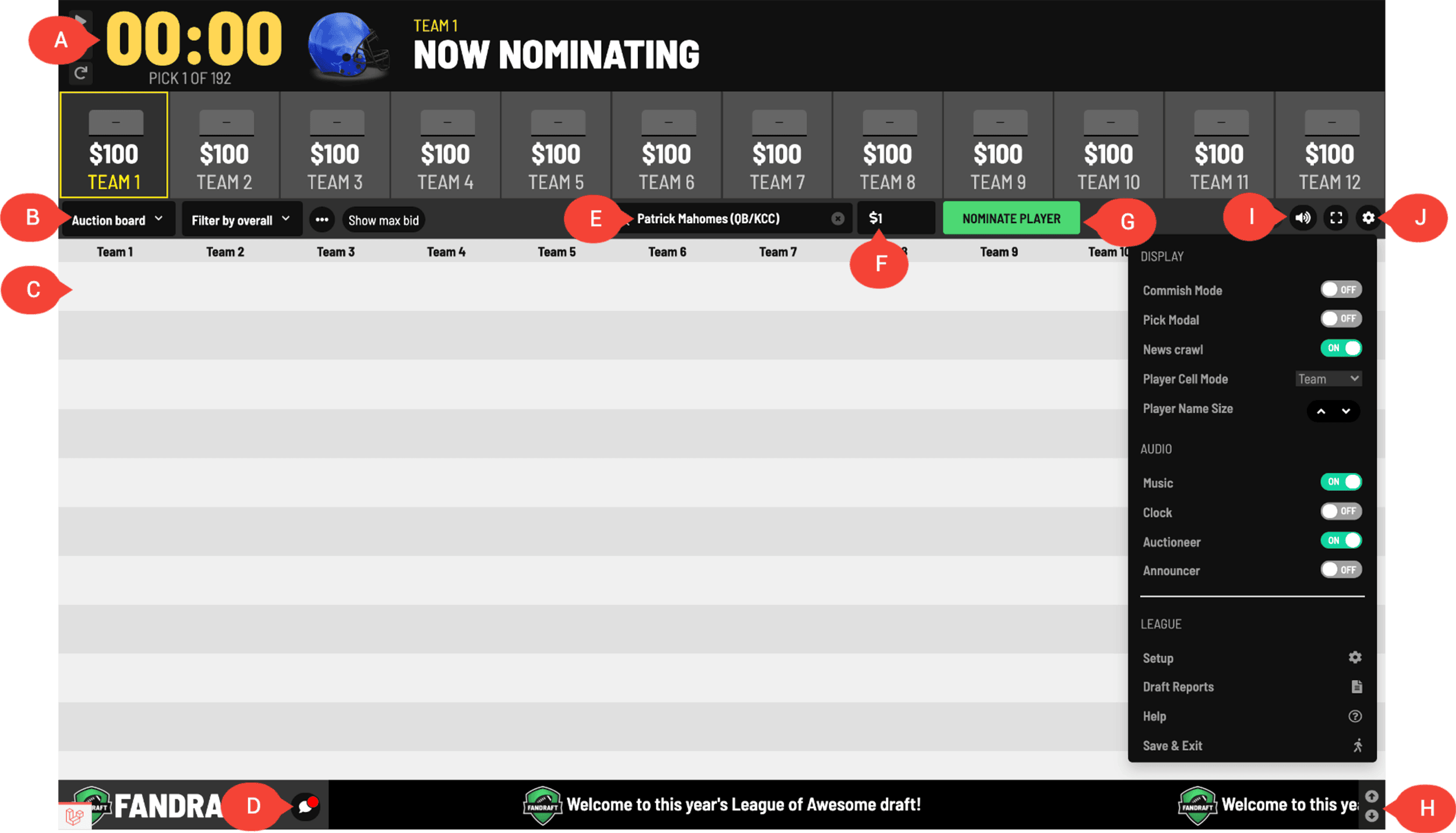
A) Auction Clock
The clock will not start running until a player has been nominated. Once nominated, the clock will begin at the designated start time (e.g., 30 seconds), and continue to run down until the 10-second mark (or whatever your league's custom "Wrap-up time" is). Any incoming bid after this time will reset the clock to 10 seconds. Once the clock hits zero (00:00), the highest bidder will win the player.
B) Draft Board Display
Use this drop-down menu to change which Draft Board display you would like to view.
C) Player Cell
Players will be displayed in the draft grid as they are selected.
D) Chat Window
Clicking on this box will reveal the Chat Window, allowing remote owners to text-chat with each other.
E) Nomination Queue
When it is a team's turn to nominate a player, they can type in the nomination queue to search for the player they are interested in nominating.
F) Opening Bid Amount
Enter the amount that you'd like to make as an opening bid for this player.
G) Nominate Player
Once an owner has added a player to the nomination queue and clicks the "Nominate Player" button, the bidding process will begin.
H) Ticker Speed
Click the up/down arrow to increase/decrease the speed of the news crawl.
I) Commissioner Mode
Available only to the Commissioner. Once turned on, this allows the commissioner to control and add draft picks on behalf of all of the owners.
J) Options Menu
Opens up the available display and audio options, and the menu to exit the draft.
The "Options menu" has available several preferences that can be adjusted to customize the draft experience:
-
Commissioner Mode: Available to the Commissioner. Once turned on, this allows the commissioner to control and add draft picks on behalf of all of the owners.
-
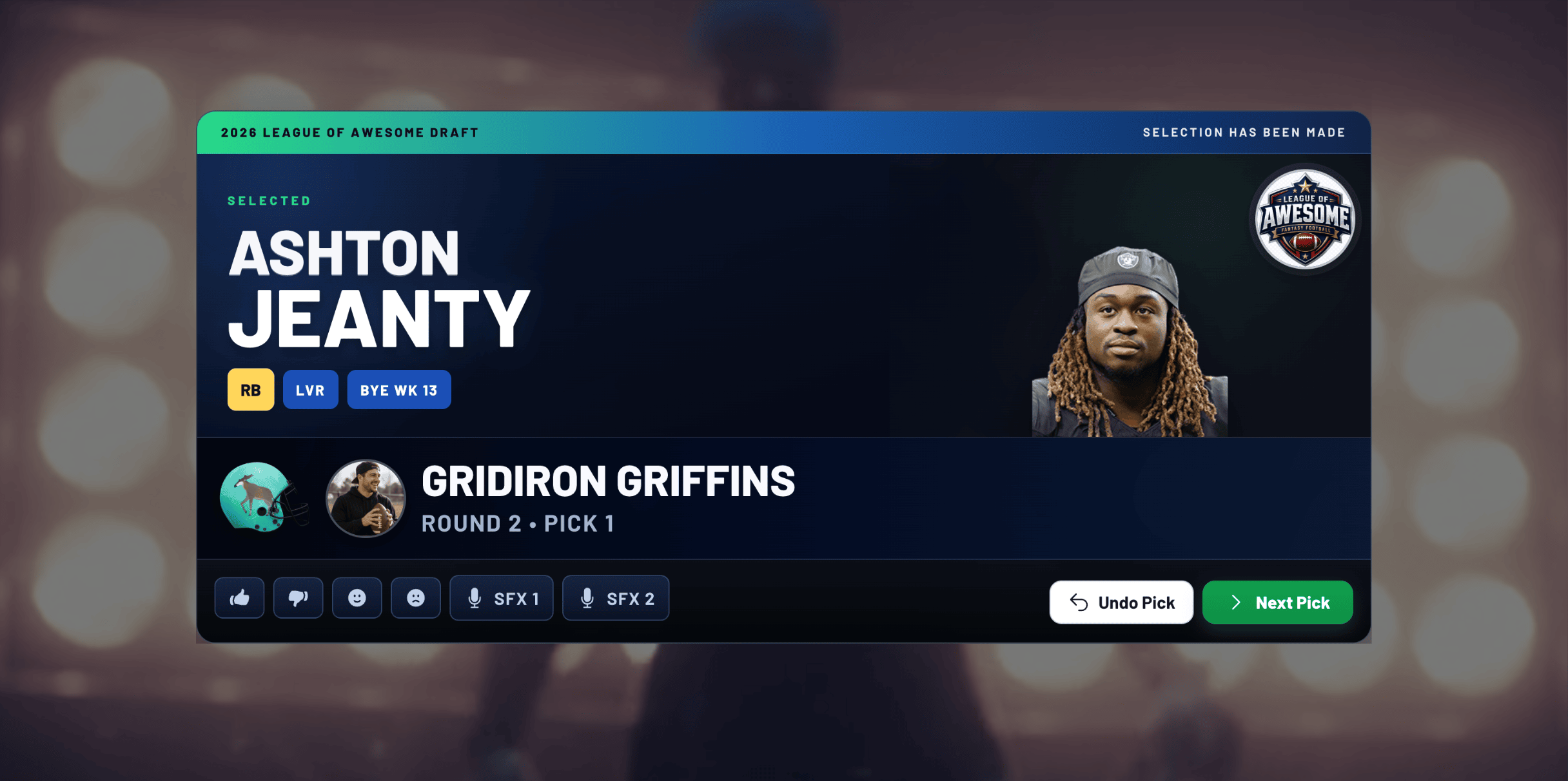
Pick Modal: This turns the graphical "Pick Modal", which is shown after each draft selection, on/off. The "Pick Modal" looks similar to this:
-
News Crawl: Turn the informational ticker on the bottom of the screen on/off.
-
Player Cell Mode: This switches between displaying either a player's BYE WEEK, NFL TEAM NAME, or BID AMOUNT in the individual player cells on the draft board.
-
Player Name Size: This adjusts the font size of player cells, for all board displays except the "Player Board Display".
-
Music (on/off): If your league uses "Team Walk-Up Songs", the option to turn the music on/off will appear here.
-
Clock (audio): This turns the clock audio on/off.
-
Auctioneer (audio): This turns the "Auctioneer Announcer" audio on/off.
-
Announcer (audio): This turns the "Voice Announcer" audio on/off.
Bidding Screen
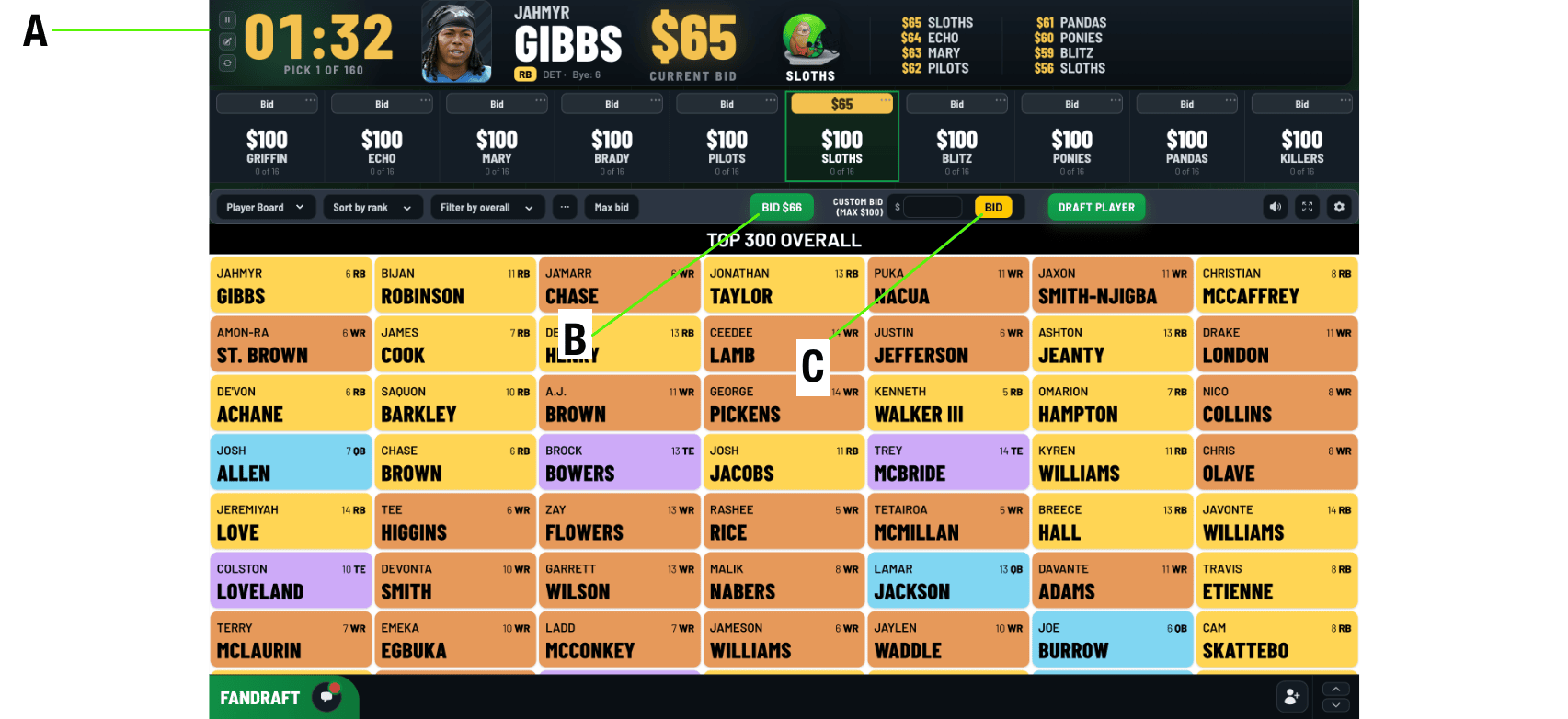
A) Auction Clock
The clock will not start running until a player has been nominated. Once nominated, the clock will begin at the designated start time (e.g., 30 seconds) and continue to run down until the wrap-up time (e.g., the 10-second mark). Any incoming bid after this time will reset the clock to 10 seconds. Once the clock hits zero (00:00), the highest bidder will win the player.
B) Bid $X
Click here during the bidding process to quickly place the next highest bid on the current player auction.
C) Custom Bid
The custom bid area allows the user to enter any desired bid amount.