How to use the "Player Pick Queue"
A queue allows remote owners to create a list of players that they are interested in drafting. In cases where an owner is temporarily not present for their pick, or the timer runs out, the CPU will auto-draft from their queue. Once the queue is empty, the auto-draft will take the next best player based on the team's roster needs.
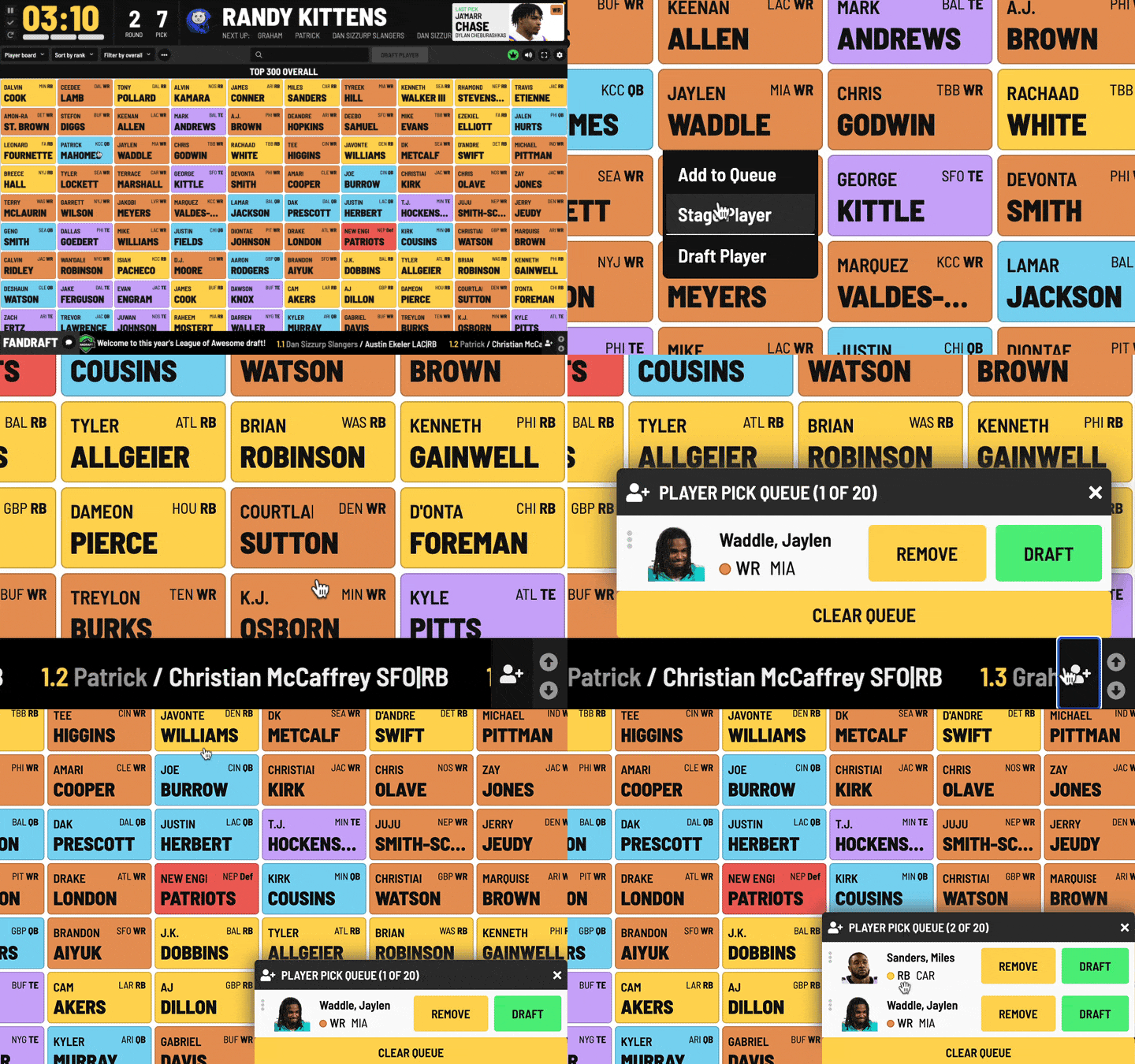
Adding Players to the Queue
To add a player to the draft queue:

- Make sure you are viewing the "Player board" display.
- Click on the cell of a specific player, and then select "Add to Queue".
- Owners can hold up to 20 players in their draft queue.
Accessing the Queue
Owners can access their individual queues by clicking the "queue button" on the bottom right corner of the screen.

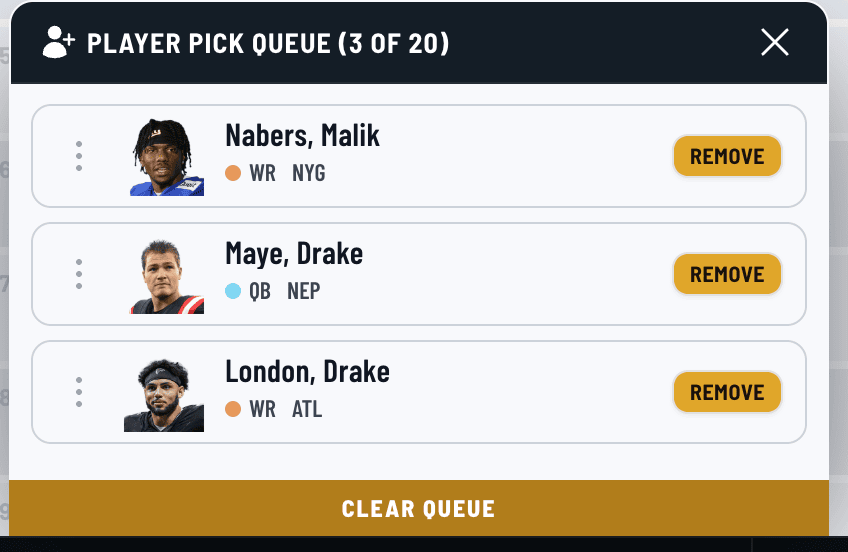
Queue Controls
- Sort Players: Click-hold and drag a player up or down to reorder them in the list.
- Remove: This will remove the player from your draft queue.
- Draft: This button will be displayed when an owner is on the clock to pick. Clicking this button will add the player to the stage to be selected. Once added to the stage, the "Draft Player" button will appear.
- Clear Queue: This will empty out the entire player queue.